Overview
LiveKit Egress gives you a powerful and consistent set of APIs to export any room or individual tracks from a LiveKit session. It supports recording to an MP4 file or HLS segments, as well as exporting to live streaming services like YouTube Live, Twitch, and Facebook via RTMP.
For LiveKit Cloud customers, egress is available for your project without any additional configuration. If you're self-hosting LiveKit, egress must be deployed separately.
This page covers self-hosting the Egress service. For information about using egress, including egress types, configuration, and API usage, see the Egress overview.
Service architecture
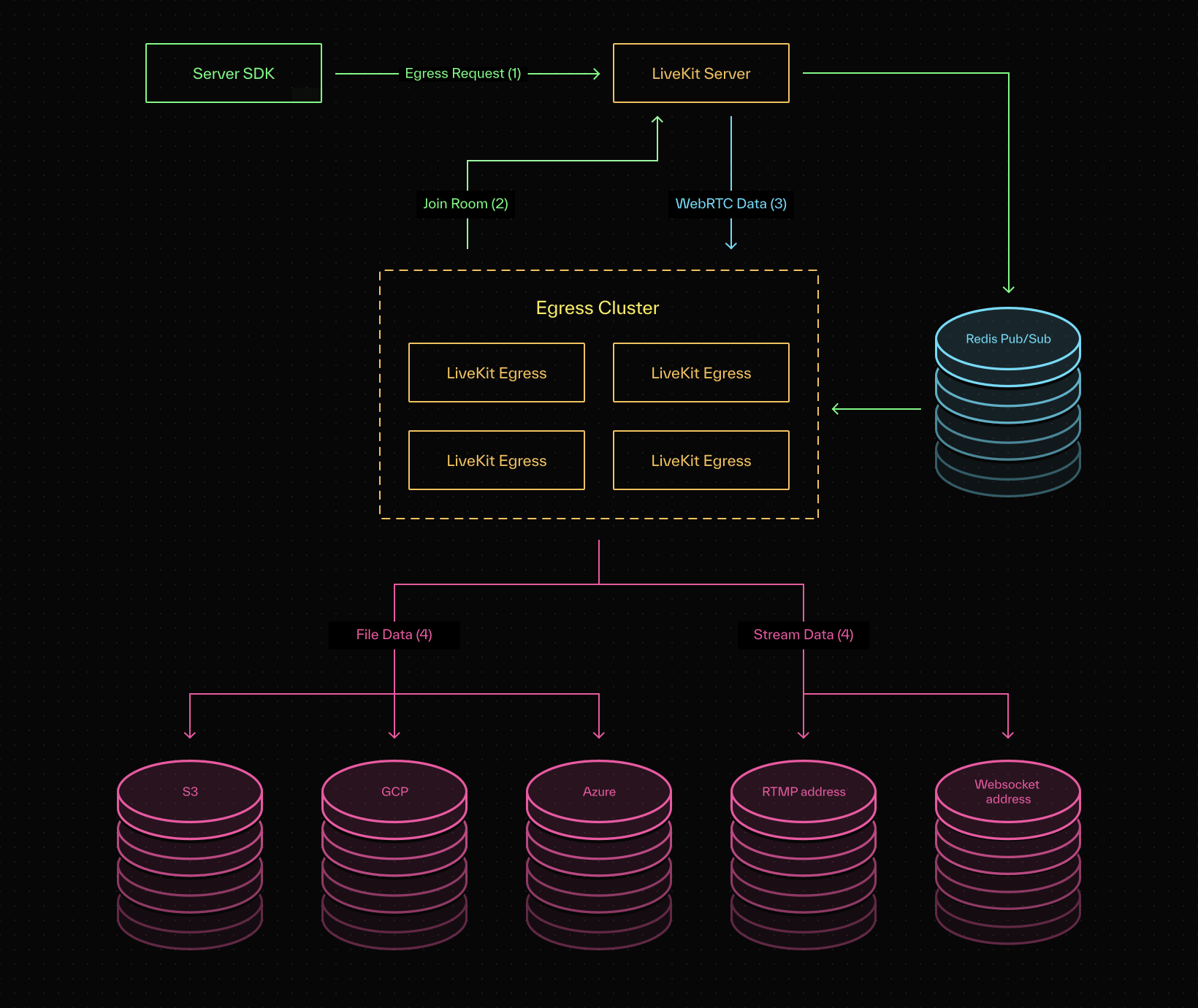
When multiple egress workers are deployed, they will automatically load-balance and ensure requests are distributed across worker instances.
Requirements
Certain kinds of egress operations can be resource-intensive. We recommend giving each Egress instance at least 4 CPUs and 4 GB of memory.
An egress worker may process one or more jobs at once, depending on their resource requirements. For example, a TrackEgress job consumes minimal resources because it doesn't need to transcode. Consequently, hundreds of simultaneous TrackEgress jobs can run on a single instance.
As of v1.7.6, Chrome sandboxing is enabled for increased security. This means the service is no longer run as the root user inside docker, and all egress deployments (even local deployments) require adding --cap-add=SYS_ADMIN to your docker run command. Without it, all web and room composite egress requests fail with a chrome failed to start error.
Configuration
The Egress service takes a YAML config file:
# Required fieldsapi_key: livekit server api key. LIVEKIT_API_KEY env can be used insteadapi_secret: livekit server api secret. LIVEKIT_API_SECRET env can be used insteadws_url: livekit server websocket url. LIVEKIT_WS_URL can be used insteadredis:address: must be the same redis address used by your livekit serverusername: redis usernamepassword: redis passworddb: redis db# Optional fieldshealth_port: if used, will open an http port for health checkstemplate_port: port used to host default templates (default 7980)prometheus_port: port used to collect prometheus metrics. Used for autoscalinglog_level: debug, info, warn, or error (default info)template_base: can be used to host custom templates (default http://localhost:<template_port>/)enable_chrome_sandbox: if true, egress will run Chrome with sandboxing enabled. This requires a specific Docker setup, see below.insecure: can be used to connect to an insecure websocket (default false)# File upload config - only one of the following. Can be overridden per-requests3:access_key: AWS_ACCESS_KEY_ID env can be used insteadsecret: AWS_SECRET_ACCESS_KEY env can be used insteadregion: AWS_DEFAULT_REGION env can be used insteadendpoint: optional custom endpointbucket: bucket to upload files toazure:account_name: AZURE_STORAGE_ACCOUNT env can be used insteadaccount_key: AZURE_STORAGE_KEY env can be used insteadcontainer_name: container to upload files togcp:credentials_json: GOOGLE_APPLICATION_CREDENTIALS env can be used insteadbucket: bucket to upload files to
The config file can be added to a mounted volume with its location passed in the EGRESS_CONFIG_FILE env var, or its body can be passed in the EGRESS_CONFIG_BODY env var.
Running locally
To run against a local LiveKit server, make the following updates.
These changes are not recommended for a production setup.
Open the
/usr/local/etc/redis.conffile and make the following edits:- Comment out the line that says
bind 127.0.0.1. - Change
protected-mode yestoprotected-mode no.
- Comment out the line that says
Set
ws_urlto the IP address as Docker sees it:On linux, this should be
172.17.0.1.On mac or windows, run the following command:
docker run -it --rm alpine nslookup host.docker.internalIt should return an IP address like this:
Name: host.docker.internal Address: 192.168.65.2
These changes allow the service to connect to your local redis instance from inside the docker container.
Create a directory to mount. In this example, use ~/livekit-egress.
Create a config.yaml file in the above directory.
redisandws_urlshould use the above IP address instead oflocalhostinsecureshould be set to true
log_level: debugapi_key: your-api-keyapi_secret: your-api-secretws_url: ws://192.168.65.2:7880insecure: trueredis:address: 192.168.65.2:6379
To run the service, run the following command:
docker run --rm \--cap-add SYS_ADMIN \-e EGRESS_CONFIG_FILE=/out/config.yaml \-v ~/livekit-egress:/out \livekit/egress
Use the CLI to submit recording requests to your server.
Helm
If you have already deployed the server using a LiveKit Helm chart, jump to helm install below.
Ensure Helm is installed on your machine.
Add the LiveKit repo:
helm repo add livekit https://helm.livekit.ioCreate a
values.yamlfile for your deployment, using egress-sample.yaml as a template. Each instance can record one room at a time, so be sure to either enable autoscaling, or setreplicaCount>= the number of rooms you need to simultaneously record.Install the chart:
helm install <INSTANCE_NAME> livekit/egress --namespace <NAMESPACE> --values values.yamlTo fetch new chart versions, run the following commands:
helm repo updatehelm upgrade <INSTANCE_NAME> livekit/egress --namespace <NAMESPACE> --values values.yaml
Ensuring availability
RoomComposite egress can use anywhere between 2-6 CPUs. For this reason, it is recommended to use pods with 4 CPUs if you're using RoomComposite egress.
The livekit_egress_available Prometheus metric is also provided to support autoscaling. prometheus_port must be defined in your config. With this metric, each instance looks at its own CPU utilization and decides whether it is available to accept incoming requests. This can be more accurate than using average CPU or memory utilization, because requests are long-running and are resource intensive.
To keep at least 3 instances available:
sum(livekit_egress_available) > 3
To keep at least 30% of your egress instances available:
sum(livekit_egress_available)/sum(kube_pod_labels{label_project=~"^.*egress.*"}) > 0.3
Autoscaling with Helm
There are 3 options for autoscaling: targetCPUUtilizationPercentage, targetMemoryUtilizationPercentage, and custom.
autoscaling:enabled: falseminReplicas: 1maxReplicas: 5# targetCPUUtilizationPercentage: 60# targetMemoryUtilizationPercentage: 60# custom:# metricName: my_metric_name# targetAverageValue: 70
To use custom, you must install the prometheus adapter. You can then create a Kubernetes custom metric based off the livekit_egress_available Prometheus metric.
Chrome sandboxing
By default, RoomComposite and web egresses run with Chrome sandboxing disabled. This is because the default docker security settings prevent Chrome from switching to a different kernel namespace, which is needed by Chrome to setup its sandbox.
Chrome sandboxing within egress can be reenabled by setting the enable_chrome_sandbox option to true in the egress configuration, and launching docker using the provided seccomp security profile:
docker run --rm \-e EGRESS_CONFIG_FILE=/out/config.yaml \-v ~/egress-test:/out \--security-opt seccomp=chrome-sandboxing-seccomp-profile.json \livekit/egress
This profile is based on the default Docker seccomp security profile and allows the 2 extra system calls (clone and unshare) that Chrome needs to set up the sandbox.
Note that Kubernetes disables seccomp entirely by default, which means that running with Chrome sandboxing enabled is possible on a Kubernetes cluster with the default security settings.